If you are searching for a safe and official table capture download to extract tables from web pages into Excel, CSV, or Google Sheets, you have arrived at the definitive installation walkthrough. A reliable chrome extension table capture tool eliminates hours of tedious manual copy-pasting, broken cell formatting, and fragmented clipboard data. In this comprehensive setup guide, you will learn how to complete your official table capture download from the Chrome Web Store, configure your browser settings in under 60 seconds, and start capturing web tables immediately with zero technical barriers.
Get Neksio Table Capture for Google Chrome
Direct 1-click download from Google Chrome Web Store. Capture unlimited rows, extract dynamic JavaScript data, and export clean Excel or Google Sheets files with full client-side privacy.
Table of Contents
- 1. What is Table Capture and Why Do You Need It?
- 2. Official Table Capture Download: Step-by-Step Installation Guide
- 3. Pinning and Configuring the Extension in Your Toolbar
- 4. How to Capture and Export Your First Web Table in 60 Seconds
- 5. Table Capture Free vs Pro: Feature Comparison Matrix
- 6. Browser Compatibility: Using on Edge, Brave, and Chromium
- 7. Security & Data Privacy: Why Client-Side Processing Matters
- 8. Frequently Asked Questions (FAQ)
What is Table Capture and Why Do You Need It?
Modern web browsers are engineered to render human-readable interfaces, but they are notoriously poor at structured data extraction. When you attempt to highlight and copy a data table from an online portal, financial report, e-commerce catalog, or research repository, the native operating system clipboard strips away column boundaries. You often paste an unreadable single column of mixed text, numbers, and broken HTML tags into Microsoft Excel or Google Sheets.
This is where a dedicated table capture download becomes essential. By installing a lightweight browser add-on, your browser gains programmatic understanding of Document Object Model (DOM) elements. Rather than scraping raw pixels, the extension scans the underlying HTML hierarchy, identifies standard <table> elements, reconstructs <div>-based CSS grid structures, and converts that data directly into perfectly aligned comma-separated values (CSV) or Microsoft Excel files (.xlsx).
Whether you are a freelance data analyst scraping lead generation lists on Upwork, an e-commerce store manager extracting competitor catalog pricing, or an academic researcher gathering census statistics from Wikipedia, completing your table capture download transforms a 45-minute manual data entry chore into a single-click workflow.
Official Table Capture Download: Step-by-Step Installation Guide
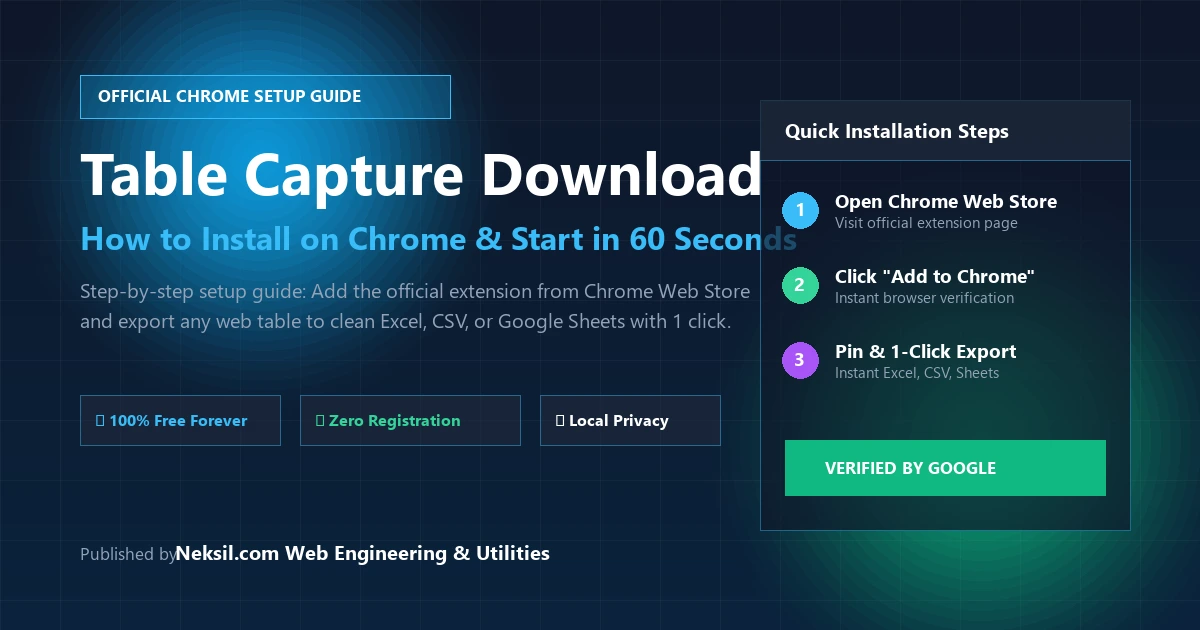
Downloading browser extensions from unverified third-party websites or unknown APK/ZIP repositories carries severe security risks. You should always obtain your table capture google chrome tools directly from the official Google Chrome Web Store. Follow these three quick steps to get up and running:
1
Step 1: Open the Official Chrome Web Store Page
Navigate directly to the official Neksio Table Capture Extension Page on the Chrome Web Store. The store listing contains verified publisher credentials, screenshots, user reviews, and privacy practice disclosures audited by Google’s automated security scanners.
2
Step 2: Click the “Add to Chrome” Button
On the upper-right corner of the extension listing, click the prominent blue “Add to Chrome” button. A browser permission dialog will appear asking you to confirm: “Add Neksio Table Capture?”. Click “Add extension” to proceed. Google Chrome will automatically download the lightweight package (under 1 MB) and install it into your browser profile within 3 seconds.
3
Step 3: Verification & Instant Activation
Once the installation completes, a small confirmation popup will notify you that the extension has been added to Chrome. You do not need to reboot your computer or restart your operating system. The extension is immediately ready to extract data from any web page you visit.
Pinning and Configuring the Extension in Your Toolbar
By default, Google Chrome places newly installed add-ons inside the “Extensions” puzzle icon dropdown menu. To ensure rapid 1-click access during daily browsing sessions, pinning the icon to your main toolbar is highly recommended:
- Click the Puzzle Piece icon (Extensions) located at the top-right corner of your Chrome browser, immediately next to your user avatar.
- Locate Neksio Table Capture in the list of active browser extensions.
- Click the gray Pin icon next to the extension name. The pin will turn blue, and the vibrant Table Capture icon will remain permanently visible on your top browser toolbar.
How to Capture and Export Your First Web Table in 60 Seconds
Now that your table capture download is complete and pinned, capturing data from any live website requires just three simple clicks:
- Open Target Web Page: Navigate to any website containing a data table (e.g., a Wikipedia list, an e-commerce product comparison, or a financial stock table).
- Click the Extension Icon: Click the Neksio Table Capture icon in your toolbar. The extension instantly scans the active document DOM and displays a list of all detected tables, showing row counts, column counts, and live data previews.
- Select Your Export Format:
- Copy to Clipboard: Instantly copies clean tab-delimited or comma-separated rows. Open Microsoft Excel, Google Sheets, or LibreOffice Calc and press
Ctrl + V(orCmd + Von macOS) for immediate paste. - Export as CSV: Downloads an immediate
.csvfile directly to your computer’s Downloads directory. - Export as Excel (.xlsx): Generates a native Microsoft Excel workbook preserving headers, cell alignments, and numeric formats.
- Export to Google Sheets: Formats the payload for direct insertion into a new Google Spreadsheet without messy parsing wizards.
- Copy to Clipboard: Instantly copies clean tab-delimited or comma-separated rows. Open Microsoft Excel, Google Sheets, or LibreOffice Calc and press
For a complete visual walkthrough on handling complex multi-column web pages, check out our in-depth tutorial on how to export table from website to excel free.
Table Capture Free vs Pro: Feature Comparison Matrix
When users look for a table capture download, they often encounter traditional legacy extensions that impose restrictive 250-row artificial limits, require recurring monthly subscriptions, or disable CSV export features until you purchase a “Pro” license.
Neksio Table Capture was developed to provide an open, transparent, and high-performance alternative where essential web utility features remain completely free forever. Below is a direct comparison of capabilities:
To explore an in-depth breakdown of alternative software suites and commercial options, read our detailed review on best table capture Chrome extension alternatives and pro review.
Browser Compatibility: Using on Edge, Brave, and Chromium
Even though the Chrome Web Store is maintained by Google, any Chromium-based desktop browser natively supports your chrome extension table capture download. If your primary browser is not Google Chrome, you can install and run Neksio Table Capture using the exact same official link:
- Microsoft Edge: Open Edge, visit the Chrome Store link, and click “Allow extensions from other stores” on the banner at the top of the screen. Then click “Add to Edge”.
- Brave Browser: Brave is built on Chromium and has native Chrome Web Store integration out of the box. Open the extension page and click “Add to Brave” without any additional configuration.
- Opera & Opera GX: Click “Add to Opera” directly from the Web Store listing.
- Vivaldi: Native 1-click installation supported immediately.
Security & Data Privacy: Why Client-Side Processing Matters
When extracting sensitive financial records, internal enterprise analytics, proprietary sales pipelines, or patient rosters, sending web page HTML data to external cloud scraping servers creates an unacceptable compliance liability.
Neksio Table Capture operates under a strict Zero-Cloud, 100% Client-Side Architecture. When you execute a table extraction:
- All DOM traversal, parsing, delimiter cleaning, and Excel file encoding execute locally in your computer’s browser memory.
- No row, column, header, or table content is ever transmitted to external servers, cloud databases, or third-party analytical trackers.
- The extension adheres strictly to Google Chrome Manifest V3 sandboxing rules and operates with zero background data collection.
If you also need standalone browser-based utilities for PDF conversion, text manipulation, and numeric calculations without installing software, check out the complete suite of 236+ free online web tools on Neksil.
Ready to Eliminate Manual Copy-Pasting?
Download Neksio Table Capture directly from the official Google Chrome Web Store. It is 100% free, lightweight, privacy-focused, and requires no account setup.
Frequently Asked Questions (FAQ)
Is Table Capture download free on Google Chrome?
Yes. Neksio Table Capture is completely free to download from the official Google Chrome Web Store. Unlike other extensions that impose 250-row limits or lock CSV exports behind recurring paywalls, Neksio provides free, unlimited table capture for all users.
Where can I safely download the Table Capture Chrome extension?
You should exclusively download the extension from the official Google Chrome Web Store listing. Never download third-party .crx or zip files from unverified websites, as they may contain malicious script injections or security vulnerabilities.
Can I use this extension on Microsoft Edge or Brave?
Yes. Because Microsoft Edge, Brave, Opera, and Vivaldi are all built on the open-source Chromium platform, they are fully compatible with Chrome Web Store extensions. Simply open the extension link in your browser and click “Add to Chrome” or “Allow extensions from other stores”.
Does Table Capture download require an account or credit card?
No. Neksio Table Capture requires no registration, no user account, and no credit card details. You simply install the extension and begin capturing web tables immediately.
How do I update Table Capture after downloading?
You never have to perform manual updates. Google Chrome automatically checks the Web Store for extension updates and installs the latest version in the background without interrupting your workflow.
Conclusion and Next Steps
Completing your table capture download is the single most effective way to eliminate repetitive manual data entry from your daily computer tasks. In less than 60 seconds, you can equip your browser with a robust extraction engine that handles everything from simple Wikipedia summary tables to complex dynamic JavaScript web catalogs.
Click the official link below, add the extension to your browser profile, and experience the speed of 1-click web table extraction today.
👉 Click Here to Download Neksio Table Capture on Google Chrome Web Store