
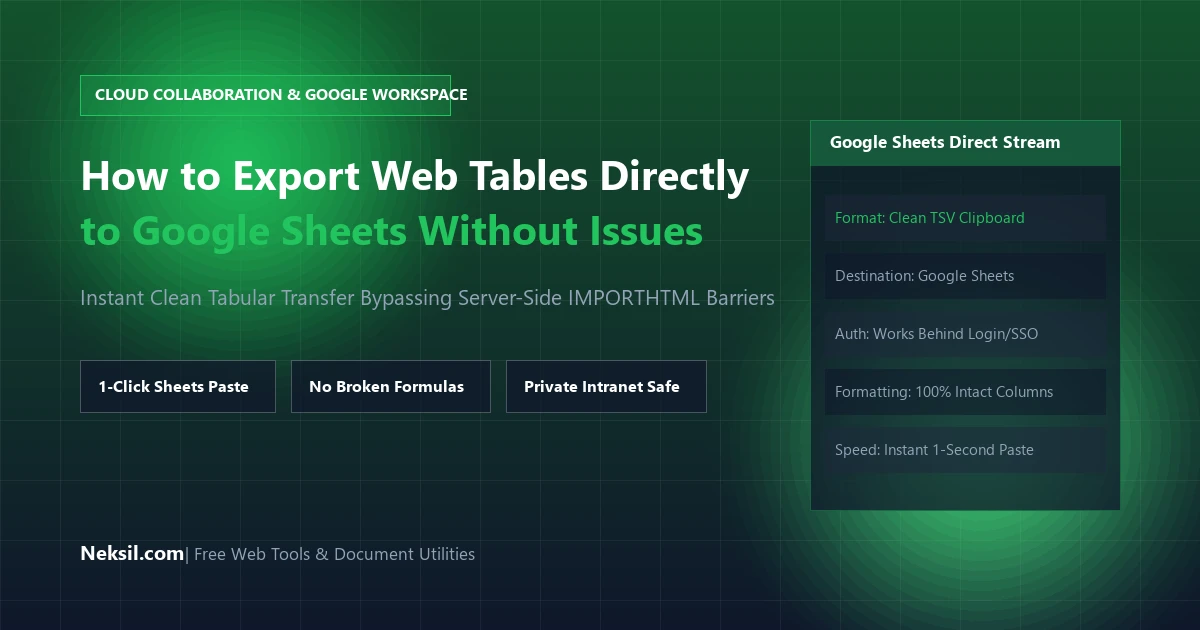
Knowing how to export web table to google sheets cleanly is an essential capability for modern teams, remote professionals, and Google Workspace users. While Microsoft Excel remains popular on enterprise desktops, Google Sheets is the global standard for cloud-first data collaboration, real-time sharing, and dynamic web reporting. However, copying HTML tables directly from browser tabs into Google Sheets frequently scrambles column widths, triggers unwanted date conversions, and creates awkward formatting errors. Here is how to transfer any web table into Google Sheets in seconds without formatting mess.
📊 Quick Summary: Transferring Web Tables to Google Sheets
- The 1-Click Clipboard Solution: Use the free Neksio Table Capture Chrome Extension. Click “Copy Clean Table” to copy tab-delimited (TSV) data, then press
Ctrl + Vin any Google Sheets document for instantaneous, perfectly aligned rows and columns. - IMPORTHTML Formula: Use
=IMPORTHTML("URL", "table", 1)for public pages. Note: It cannot access password-protected corporate dashboards or private intranets. - Zero Data Telemetry: Neksio executes parsing 100% locally in your browser memory; your private spreadsheet records are never transmitted to external servers.
- Related Masterclasses: Review our comprehensive guide on Exporting Web Tables to Excel and our comparison on Best Table Capture Chrome Extensions.
1. Why Direct Copy-Pasting Fails in Google Sheets
When you highlight text on a webpage and paste it into Google Sheets, several parsing mismatches occur:
- HTML Rich-Text Overload: Google Sheets attempts to interpret inline CSS font sizes, background colors, and hyperlinks from the source webpage. This clutters your clean spreadsheet with inconsistent font styles and unreadable formatting.
- Delimiter Confusion: Modern websites often use spaces or flexbox margins instead of real tab stops. Google Sheets cannot infer column boundaries, frequently dumping an entire 5-column row into cell A1.
- Automatic Type Coercion: Values like “1-4” (a range or score) are instantly coerced by Google Sheets into dates (“Jan 4”), permanently corrupting your source data.
2. Method 1: The 1-Click Clipboard Stream (Neksio Table Capture)
The cleanest, fastest way to move data into Google Sheets is through the Neksio Table Capture Chrome Extension.
📋 Instant 3-Step Google Sheets Transfer Workflow
- Open the Webpage: Navigate to any webpage, internal dashboard, or report displaying tabular data.
- Click Neksio Table Capture: Tap the Neksio icon in your Chrome toolbar. The extension highlights the table and displays a live spreadsheet preview.
- Click “Copy Clean Table”: Neksio formats the table data into an authentic Tab-Separated Values (TSV) clipboard string, stripping unnecessary CSS formatting and non-breaking spaces.
- Paste into Google Sheets: Open your Google Sheets document, click cell A1, and press
Ctrl + V(orCmd + V). The table renders immediately with pristine column alignment and preserved headers.
Stream Web Tables Directly to Google Sheets
Skip messy file downloads and broken formulas. Transfer web tables into Google Sheets in one click with 100% formatting fidelity.
3. Method 2: The Google Sheets =IMPORTHTML Formula
For public, static web pages that update periodically, Google Sheets offers a native formula:
=IMPORTHTML("https://en.wikipedia.org/wiki/Demographics_of_the_United_States", "table", 2)
When IMPORTHTML Fails: While convenient for public encyclopedias, IMPORTHTML cannot access intranet sites, company CRMs, or pages protected by CAPTCHAs, bot shields, or login credentials. For private corporate data, Neksio Table Capture remains the only viable in-browser solution.
If your source tables reside within static PDF documents, use our free PDF to Excel Converter on Neksil, or explore our full catalog of 236+ free utilities at Neksil Online Tools.
4. Frequently Asked Questions (FAQ)
Does pasting into Google Sheets retain formatting and formulas?
When using Neksio’s “Copy Clean Table” button, data is transferred as clean tab-delimited text. This preserves the exact columns and rows while allowing your Google Sheet’s native font, border, and color theme to format the cells naturally without inline CSS clutter.
Can I export directly to an Excel file from Google Sheets?
Yes. Once your table is in Google Sheets, you can click File > Download > Microsoft Excel (.xlsx), or you can use Neksio to download the .xlsx file directly in one step.
5. Conclusion
Modern cloud reporting demands seamless data transfer. Add the free Neksio Table Capture Chrome Extension to your browser today, and experience how effortless moving web data into Google Sheets can truly be.